📄 Download the how-to PDF:
Category: Settings Fields & Sections
To be used for help content in the cAdmin page Settings > Fields & Sections
Import and Reuse: A Faster Way to Set Up Meetings
You’ll see a BETA label next to the new Import feature—this indicates it’s version 1 of a tool we plan to expand and refine over time. cAdmin’s Import feature lets you pull in lists, session types, activities, campaigns and more from any past meeting—no rebuilding from scratch.
BETA Notice
You’ll see a BETA label next to the new Import feature—this indicates it’s version 1 of a tool we plan to expand and refine over time. It’s functional and ready to use, though you may notice a few rough edges as we gather feedback and shape future enhancements.
Overview
cAdmin’s Import feature lets you pull in lists, session types, activities, campaigns and more from any past meeting—no rebuilding from scratch. By reusing proven configurations, you slash setup time and costs, reduce manual data-entry errors and enjoy the flexibility to mix and match only the components you need for each meeting.
Who Can Use It
All cAdmin roles have access to Import, except for Freelance Onsite AV Staff & Vendors.
Where to Find Import
• Homepage: Click Import in the upper-right corner.
• Individual Dashboards (Lists, Activities, Campaigns, etc.): Click Import on that dashboard to copy only those settings.
What You Can Import
1. Lists
2. Custom Terms
3. Session Types
4. Activities
5. Campaigns
6. Extra Data Fields
7. Media Types
8. Collection Templates
Full Import Wizard (All‑in‑One)
1. Initiate Import
• From the homepage, click Import (upper right).
2. Select Source Meeting
• Choose the meeting whose settings you want to copy.
• Use the search bar to filter by meeting name or date.
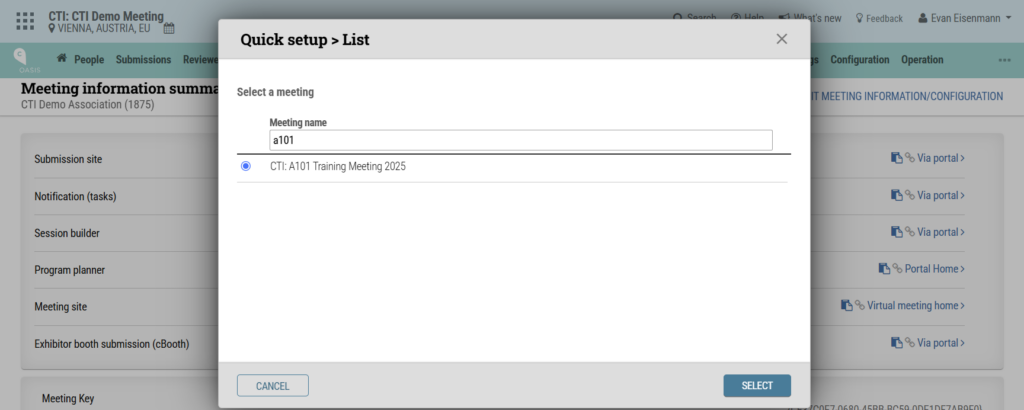
3. Step Through Each Setting
Lists
• Skip if you don’t need them.
• Select any list to copy. When you do, its row may highlight yellow—this indicates that a list with the same name already exists in the new meeting. You must rename it in the New list name field (e.g., “Category List” → “Category List 2025”), otherwise the import won’t allow duplicate names.
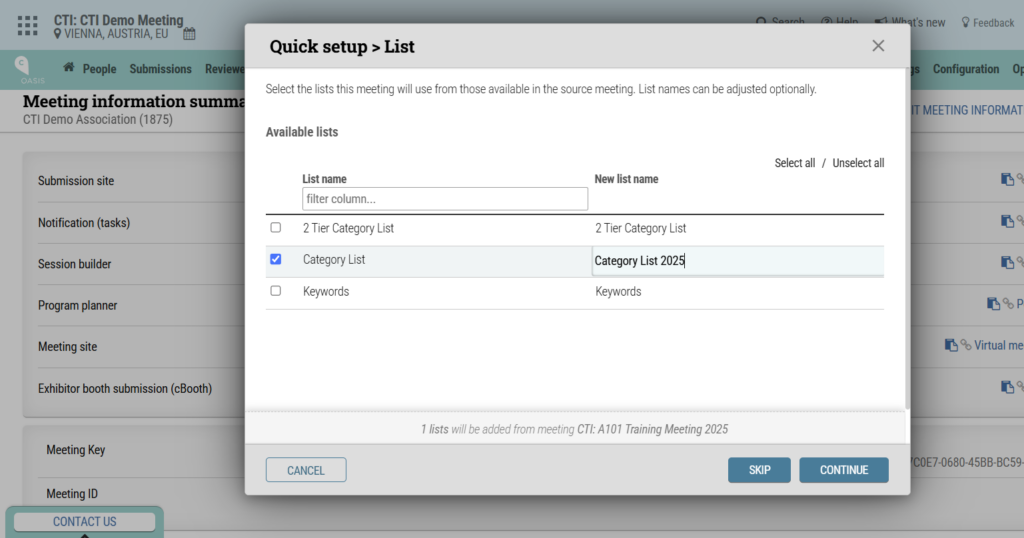
Custom Terms
• Check the terms to import and adjust each “Meeting level value” as needed.
• The running footer at the bottom of the dialog box reminds you which meeting you’re copying from.
Session Types, Activities, Campaigns, etc.
• Follow the same pattern: skip or select, then rename or update as desired. Any selection that conflicts with an existing name will highlight yellow, signaling you to provide a new name before proceeding.
4. Review & Confirm
Click Continue at each step to confirm or skip the import.
5. Verify
After completing the wizard, visit each dashboard to ensure your imported settings appear correctly.
Quick-Pick Imports
If you only need one setting (e.g., an activity):
1. Navigate to the relevant dashboard (e.g., Activities) and click Import.
2. Select your source meeting and the specific item(s) you want to bring in. The selected row will highlight yellow if its name already exists—rename it to avoid conflicts. For activities, you can also choose a New topic list.
3. Click Continue to confirm the import.
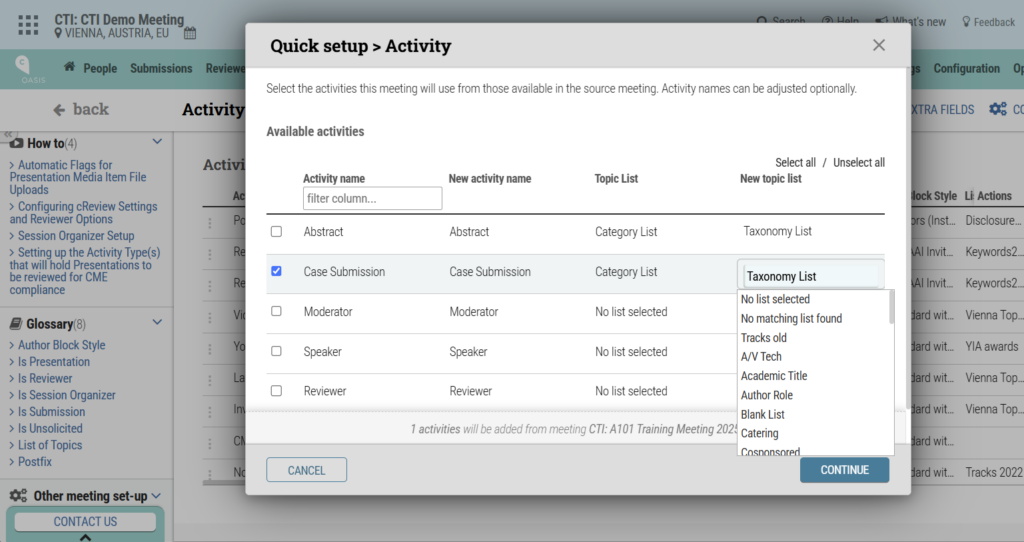
Benefits
• Time & Cost Savings: Reuse proven configurations rather than rebuilding from scratch.
• Error Reduction: Minimize manual data-entry mistakes.
• Flexibility: Mix and match only the components you need for each meeting.
Set Up Author Extra Fields
The Extra Fields feature in cAdmin allows administrators to expand data management for categories such as People, Authors, Submissions, and Sessions.
Author fields can be applied to both primary authors and co-authors or exclusively to primary authors, but they cannot be restricted to co-authors only. Extra fields always appear after the standard author data fields in the Portal.
Adding a New Author Field:
1. Navigate to Settings → Meeting Setup → Fields & Sections → Author fields.
2. Click CREATE NEW FIELD.
3. Complete the required information and click ADD:
Display Prompt: Enter the prompt text to describe the field.
Field Section: Describe the field, typically “Extras”.
Type of Data: Choose the type of data the field will accept:
• Text Box: Allows text or numeric input. Setting a character limit is recommended.
• Selection from List: Provides a dropdown of options from a list you’ve created. Create a list under Settings → Meeting Setup → Lists.
• Checkbox: Adds a checkbox field where users can select or deselect. Rarely used advanced feature; consult your project manager before use.
• Numerals (including decimals): Used for fields that require numeric input only (e.g., money). Facilitates sorting exported data in Excel from smallest to largest or vice versa instead of alphabetically.
• Taxonomy: Currently for session extra data fields only, not for author fields. Do not use.
Examples of Created Fields:
• Gender
• Education
• Program
Exporting Author Data
1. Navigate to Reports → Report Builder and select Create New Report.
2. Extra author fields are listed as AuthorExtraData.[FieldName] (e.g., AuthorExtraData.Gender, AuthorExtraData.Education).
3. Drag the desired fields into the report and click Save As to store it for quick access.
Set Up Control Extra Fields (CED Fields) for Submissions
The Extra Fields feature in cAdmin allows administrators to extend data management for categories such as People, Author, Submissions, and Sessions. This feature enables custom data management and reporting without needing development support. Extra fields can now be bulk edited, and the new advanced search functionality makes it easy for admins to find and update specific data in bulk.
Adding a New Submission Control Field:
1. Navigate to Settings → Meeting Setup → Fields & Sections → Control fields.

2. Click CREATE NEW FIELD.
3. Complete the required information and click ADD:

Display Prompt: Enter the prompt text to describe the field.
Field Section: Describe the field, typically “Extras”.
Type of Data: Choose the type of data the field will accept:
• Text Box: Allows text or numeric input. Setting a character limit is recommended.
• Selection from List: Provides a dropdown of options from a list you’ve created. Create a list under Settings → Meeting Setup → Lists.
• Checkbox: Adds a checkbox field where users can select or deselect (e.g., Trial type drug). Rarely used advanced feature; consult your project manager before use.
• Numerals (including decimals): Used for fields that require numeric input only (e.g., money). Facilitates sorting exported data in Excel from smallest to largest or vice versa instead of alphabetically.
• Taxonomy: Currently for session extra data fields only, not for submission fields. Do not use.
Examples of Created Fields:
• Unlabeled Disclosures
• Area of Interest
• AV Equipment Needed

Once a field is created, admins can go to the Submissions Dashboard to view, export, or bulk edit the “Area of Interest” extra field (shown above).
Bulk Editing Extra Fields:
1. In the Submissions dashboard, click the gear icon and search for the “Area of Interest” field. Ensure it is checked to display on the dashboard.
2. To bulk edit, check the boxes on the left to select items, or use Select All to choose all items.
3. Click the lightning bolt icon (action ribbon) to open the bulk actions menu.
4. Select the desired bulk action (e.g., update field value).
5. Enter the new value for the field to apply the bulk change.

This process allows for efficient management and updating of extra fields across submissions.